 frename
Let AI watch your footage before you edit it.
frename turns speech into subtitles for any player and for Premiere Pro. It marks what happens when, even in clips with no speech, and suggests the In and Out. Run it on a whole folder, and when Premiere Pro opens, every clip already has its subtitles and markers.
Download for WindowsLinux and other downloads
Free and open source · Windows 10 and 11, Linux · English and Russian interface
This page is a folder of clips. Let frename prepare it.
8 clips · 1:30 of audio · subtitles ≈ $0.003 · descriptions ≈ $0.02 · ~4 s
- CC✨MVI_0412.MOVAI: Speech becomes an .srt and a Premiere Pro transcript.
- CC✨DJI_0034.MP4AI: What happens when, as markers Premiere Pro shows.
- CC✨C0017.MP4AI: The part worth keeping, as a suggested In and Out.
- CC✨GX010245.MP4AI: One run for every clip, with the price shown first.
- CC✨IMG_2072.MOVAI: Can't tell what matters to you. Tag this one yourself.
- CC✨MVI_0419.MOVAI: A note per clip, which Premiere Pro can read.
- CC✨VID_20250611_181502.mp4AI: Search, undo, crash recovery, and it plays everything.
- CC✨PXL_20250614_093011.mp4AI: Free, open source, for Windows and Linux.
- frename listens to every clip in the folder.
- It writes subtitles: an .srt for any player…
- …and a transcript Premiere Pro imports into the Text panel.
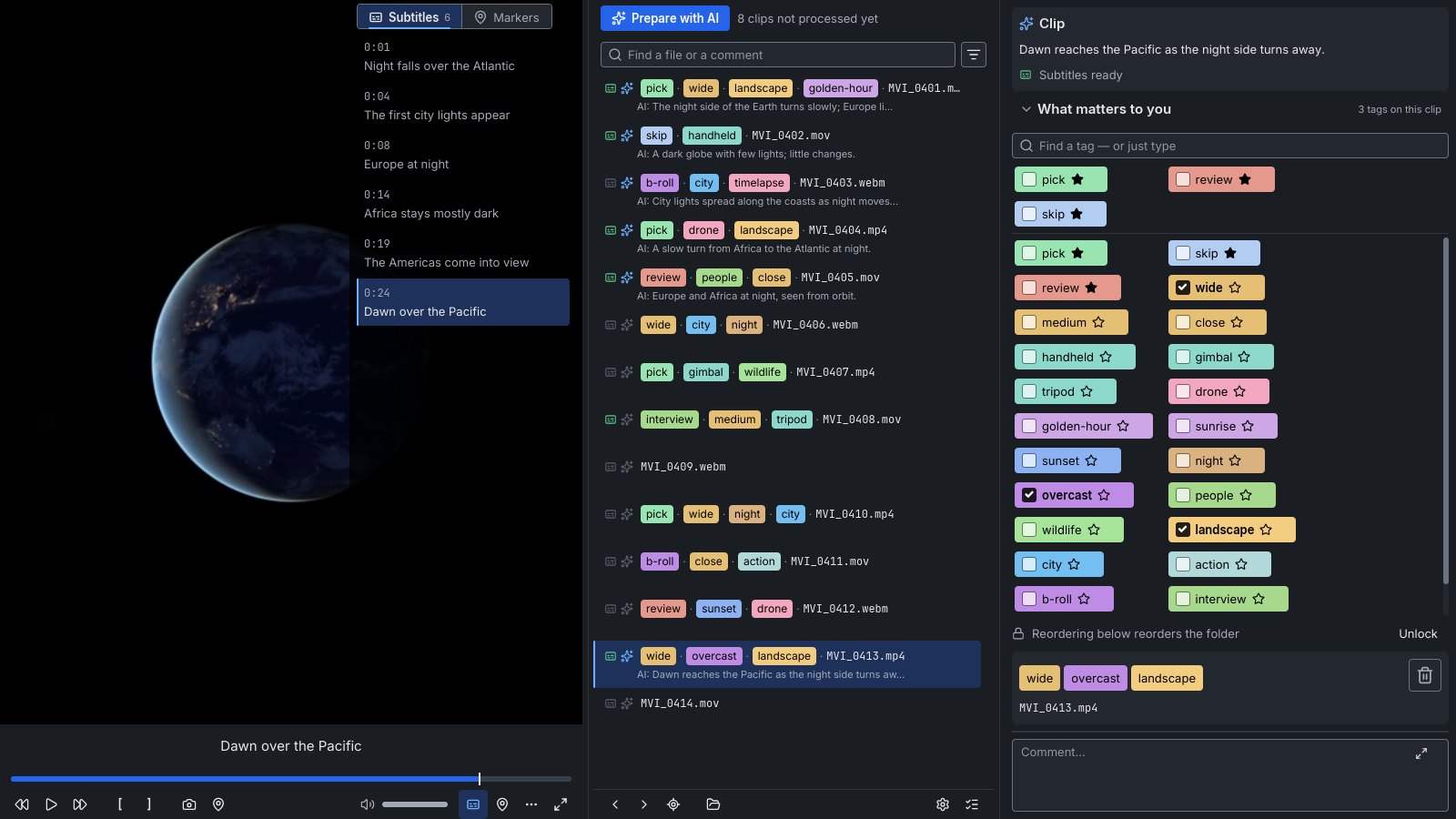
- These lines you're reading are subtitles too. You can download them.
01 · subtitles
Subtitles: SRT and Premiere Pro
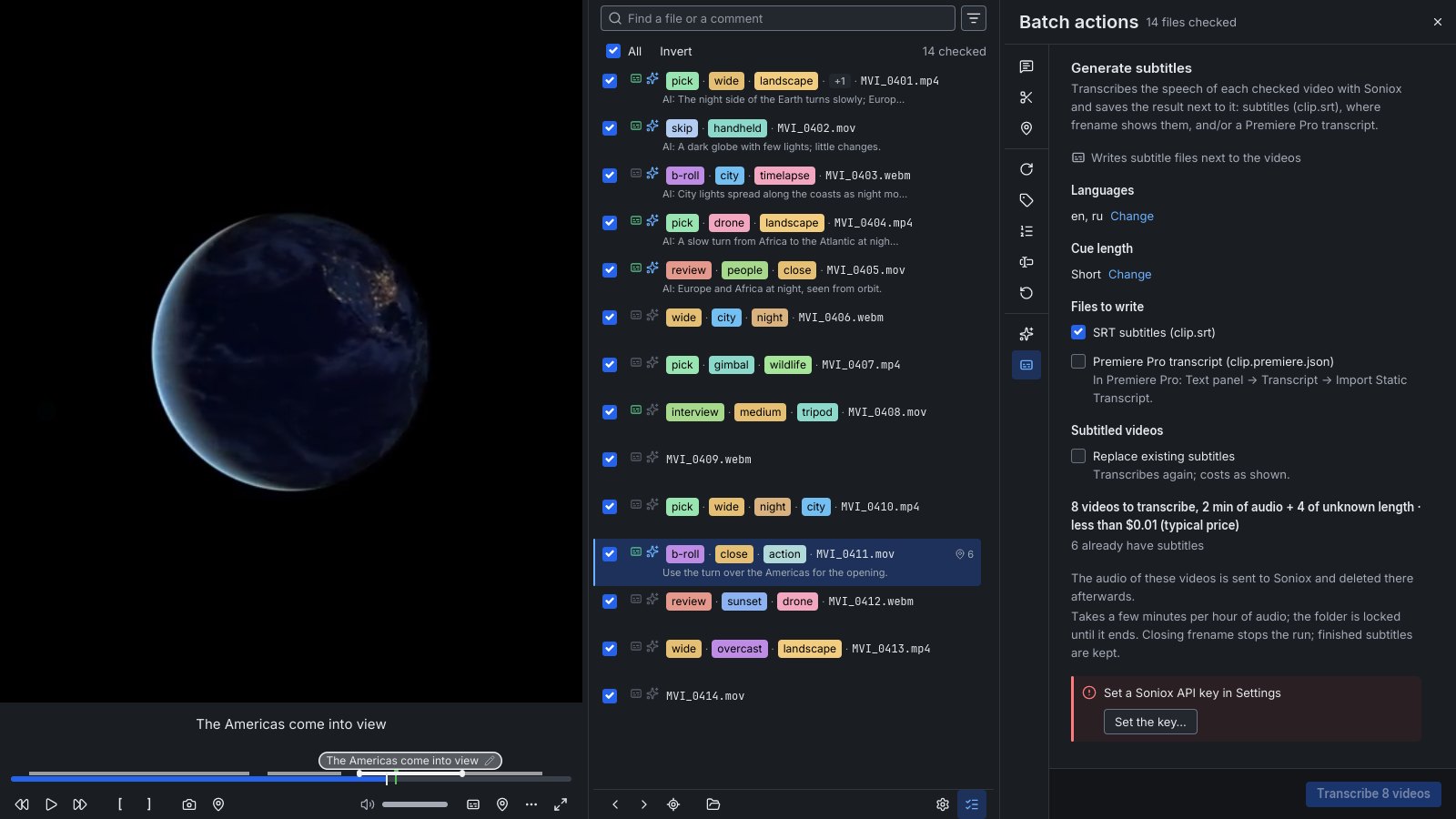
Soniox turns the speech in each clip into clip.srt, a Premiere Pro transcript (clip.premiere.json, for Text panel → Transcript → Import), or both. Choose the languages spoken in your footage, and whether a subtitle is a short line or a whole sentence.
About 10 cents per hour of audio, on your own Soniox key. Clips with no speech are found and skipped.
This page has subtitles too:
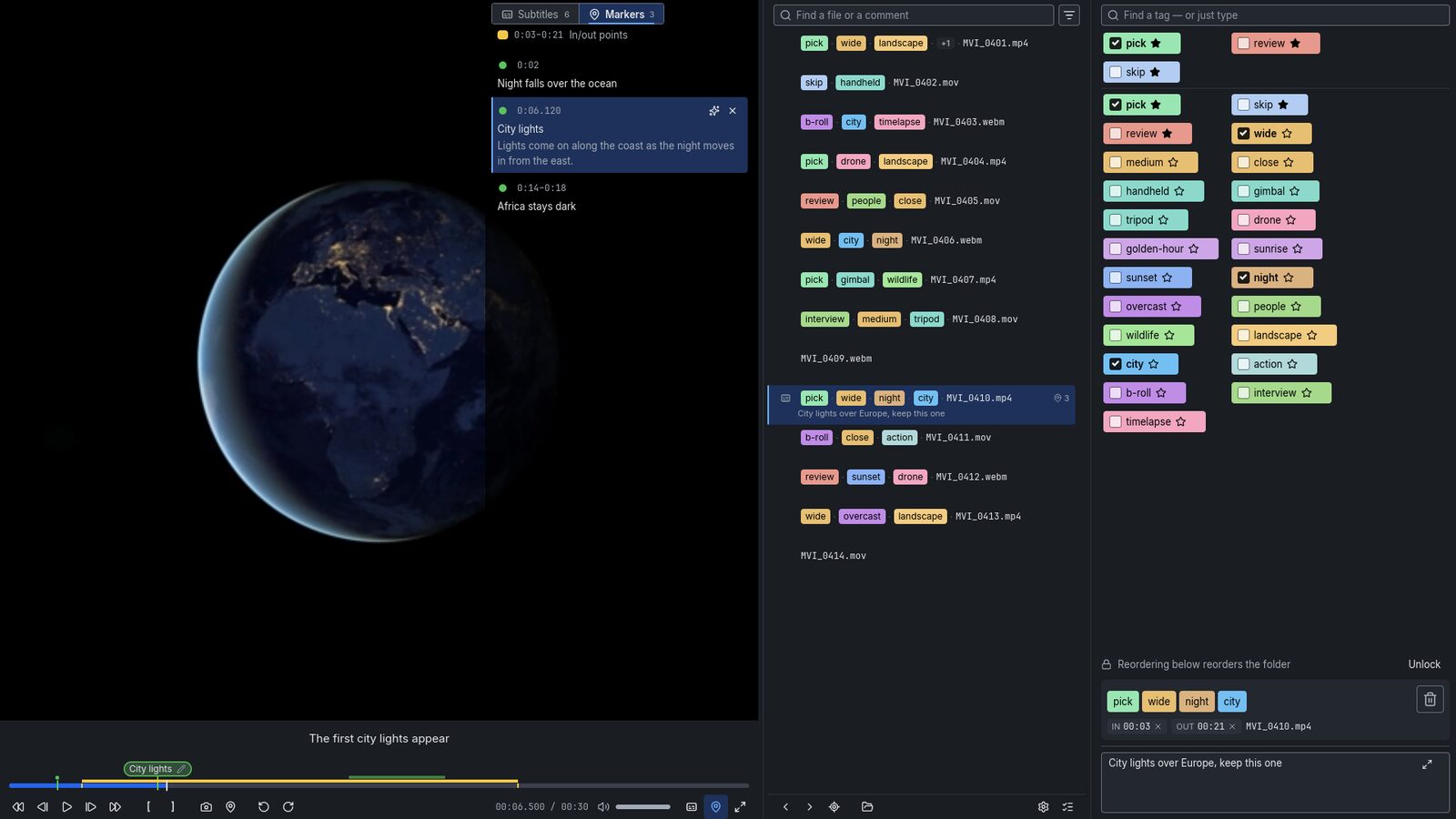
- It watches the picture too, even when nobody is talking.
- What happens, and when, becomes ranges and markers.
- Premiere Pro shows them on the clip.
- Press F2 to drop a marker here. Then press ✨ and ask the AI what's going on.
02 · ranges and markers
What happens, and when
Claude looks at up to 60 frames per clip, picked where the picture changes most, and reads the subtitles if there are any. It writes a one-line summary and marks what happens when. The moments become markers that Premiere Pro shows on the clip, so you can find the lion without scrubbing.
Your own markers live beside them. Press F2 at a moment, or hold it to mark a range. Give it a name and one of Premiere's colors. If you can't think of a name, Ctrl+F2 asks the AI.
Try it on this page. The bar at the bottom is this page's timeline. Press F2 (or ), then Ctrl+F2 (or ).
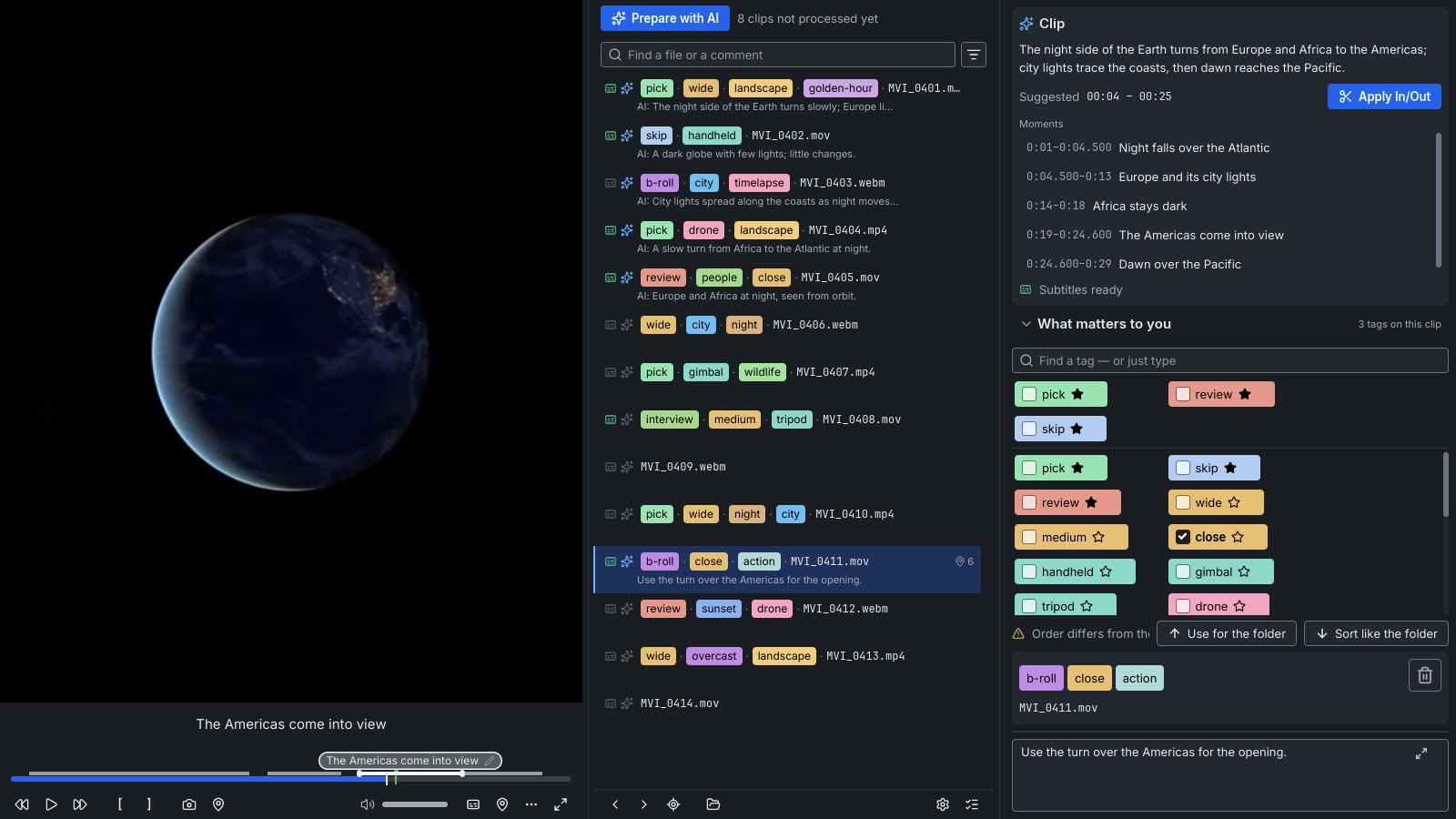
- It also picks the part worth keeping.
- The suggestion waits in the Clip panel.
- One click, and Premiere Pro gets a subclip.
03 · in and out
A suggested In and Out
The AI picks the usable part of every clip, from the first useful frame to the last. It shows at the top of the Clip panel with the summary and the moments. Press Apply In/Out, and Premiere Pro turns that part into a subclip.
Or set them yourself with [ and ].
IN —OUT —Suggested 0:00 – 0:00
The AI thinks the useful part of this page starts at the subtitles and ends at the download button. Apply it and look at the timeline. Or press [ and ] while you scroll.
- All of it runs on the whole folder while you do something else.
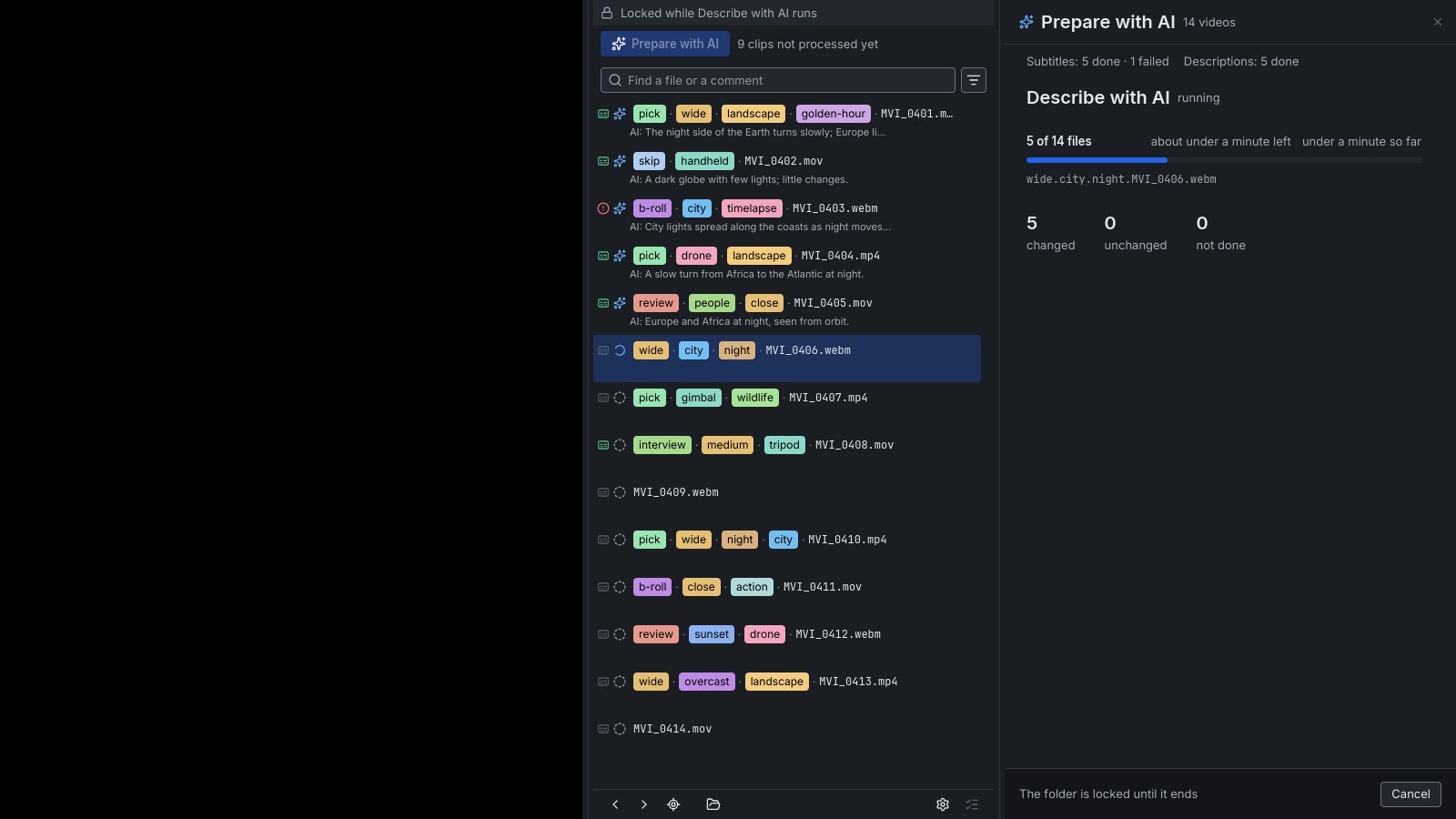
- You see the price and the time before you start.
- Clips that are done get skipped. Yours stay yours.
04 · the whole folder
A whole folder in one run
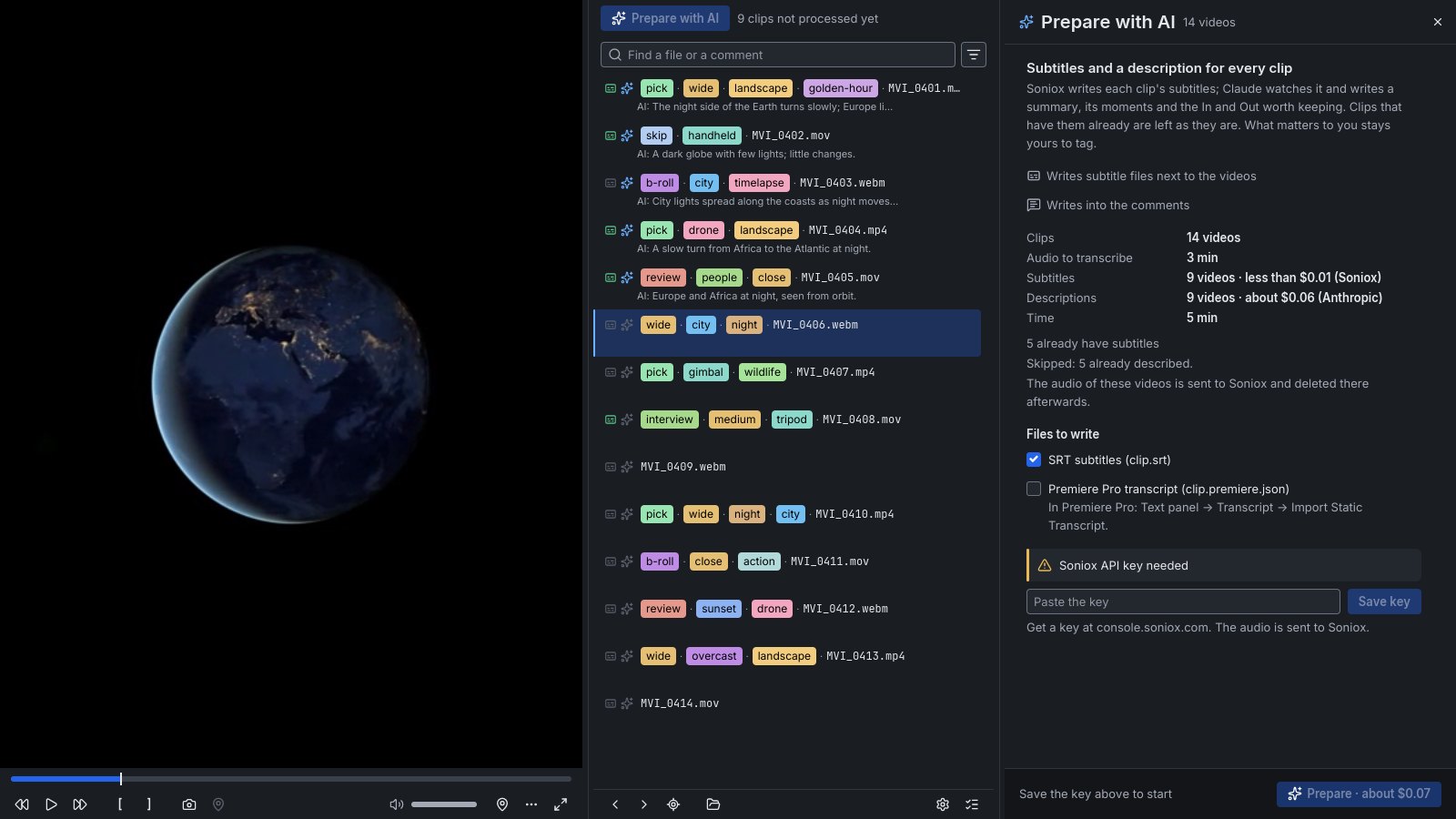
Open a folder and press Prepare with AI, the button you pressed at the top of this page. Subtitles and descriptions run on every clip that isn't done yet, and each row in the list shows its progress.
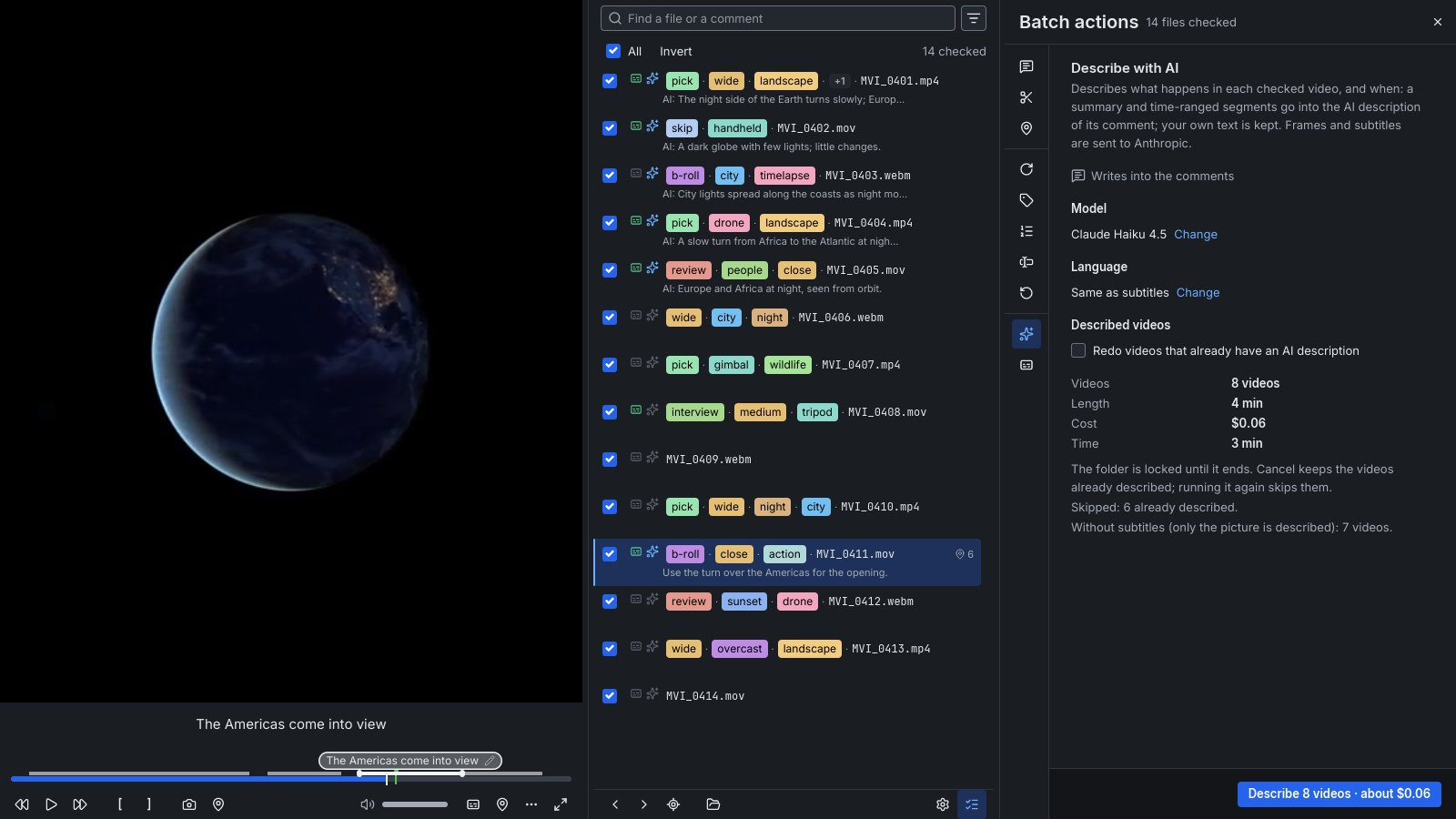
The price and the time are shown up front: describing clips with Haiku costs about $10 per 1,000 one-minute clips, and Sonnet and Opus are there when you need more detail. A new run replaces the AI's markers and leaves yours alone. It's your own Anthropic and Soniox keys, kept in the system's password store.
Need finer control? Batch actions runs any single action over the checked clips: subtitles, descriptions, rotating, moving markers and comments between the video and text files.
- The AI can tell you there's a lion in the shot.
- It can't tell you it's the shot.
- So tags stay manual. On purpose.
- Tick a few. Watch this page's file name.
05 · tags
The one thing you still do by hand
The AI can tell you there's a lion in the shot. It can't tell you it's the shot.
So we kept one manual step, on purpose: tags. They're the proof that someone actually watched the footage, and the only place to record what matters to you. Press a key or two, then PageDown, and the clip you leave is renamed with its tags.
Tags live in the file name. File Explorer, Premiere Pro and your backup tools all see them, and nothing is locked inside frename.
frename.com.mp4
- Anything else goes in the comment.
- It's saved inside the video.
- Premiere Pro shows it in the Description column.
06 · comments
A comment per clip
Write what the tags can't say: "great light, but the horizon is crooked". The comment is saved inside MP4 and MOV files, where Premiere Pro shows it in the Description column, or in a text file next to the video. Search finds clips by what you wrote.
- And the rest of the prep.
- Search everything. Undo almost anything.
- It plays whatever your camera recorded.
07 · the rest
And the rest of the prep
Search everything
Find a clip by its name, its tags, the AI's description or what you wrote. Show only clips that are untagged, or that have subtitles, markers or a comment.
Never lose your work
Ctrl+Z undoes almost everything. A recovery file brings your tags, comments and markers back after a crash or a power cut.
Plays your footage
MP4, MOV, MKV, WebM, AVI and more, with H.264, HEVC, VP9, AV1 and other common codecs. Nothing else to install.
- No account. No ads. No analytics.
- Your videos never leave your computer. Only the AI actions send anything, and only when you run them.
- That's frename. The suggested Out is right about here.
Your footage stays yours
No account, no ads, no analytics. Your videos stay on your computer. Only the AI actions send anything, only when you run them, and directly from your computer to Anthropic (frames and subtitles) or Soniox (audio) using your own key. Privacy policy
Get frename
Windows 10 or 11, 64-bit. The installer asks no questions and keeps frename up to date. A portable zip and the Linux AppImage are on the downloads page. Everything else is in the guide.
Saved in this browser only, like a comment saved inside the file.